
How to Turn On Two Step Verification on Your Google Account
To turn on two step verification on your Google account, open your Google Account, go to Security and sign in, select Turn on 2 Step Verification under “How you sign in to Google”, and follow the steps on screen. After that, anyone who signs in with your password must also complete a second step, such as tapping a prompt on your phone.
Your Google account usually holds your Gmail, Google Business Profile, YouTube channel, Google Ads and Analytics. So protecting it protects your business. This guide explains how two step verification works and how to set it up, based on Google Account Help as checked on 9 November 2026.
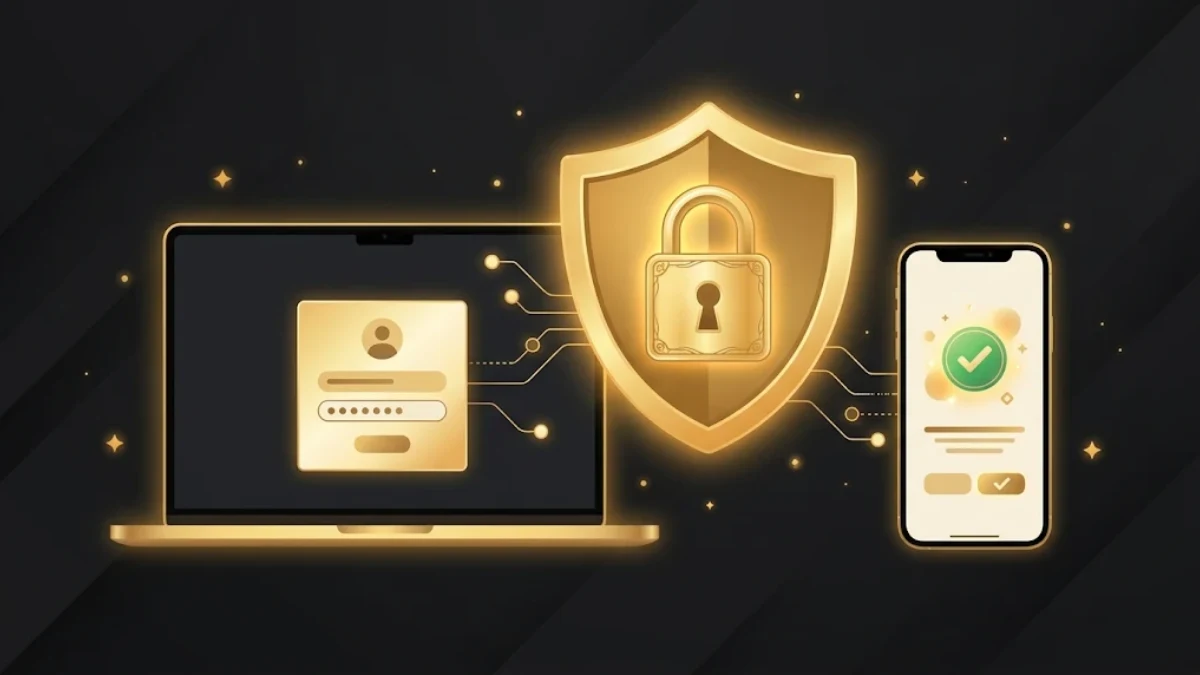
What is two step verification?
Two step verification, also called two factor authentication, adds a second check when you sign in. Google calls it 2 Step Verification. If someone steals your password, they still cannot sign in without the second step.
According to Google, once it is on, you can sign in with either:
- Your password and a second step, or
- A passkey.
Why businesses should turn on two step verification
Many business accounts are lost because of one stolen password. For example, an attacker who takes over your Gmail can reset the passwords of your other accounts, lock you out of your YouTube channel or run ads with your card.
Two step verification makes this much harder. In addition, it costs nothing and takes about five minutes to set up.
How to turn on two step verification step by step
Step 1: Open your Google Account
First, sign in and open your Google Account settings.
Step 2: Go to Security and sign in
Next, select Security and sign in.
Step 3: Turn on 2 Step Verification
Under “How you sign in to Google”, select Turn on 2 Step Verification.
Step 4: Follow the steps on screen
Then follow the steps Google shows you. Google will ask you to add a second step, such as your phone.
If you use a Google account from work, school or another organisation, these steps might not work. In that case, contact your administrator.
Which second step should you choose?
Google offers several second steps. Here is how they compare:
| Second step | How it works |
|---|---|
| Google prompts | A notification on your signed in phone. You tap Yes if it was you. |
| Passkeys and security keys | Strong protection against phishing, because they exist only on your devices. |
| Authenticator app | An app such as Google Authenticator shows a code that changes often. |
| Text message or call | Google sends a code to your phone number. |
| Backup codes | One time codes you print or save for emergencies. |
Google recommends Google prompts if you do not sign in with a passkey. According to Google, prompts are easier than typing a code and help protect against SIM swap and other attacks based on phone numbers.
You receive Google prompts on Android phones signed in to your Google account. On iPhones, you receive them when the Gmail, Google Photos, YouTube or Google app is signed in to your account.
Set up a backup method
Phones get lost, stolen or broken. Therefore, always add at least one backup method, such as backup codes or a second phone number. Save backup codes somewhere safe and offline, for example printed in a locked drawer.
Also note that when you add a new phone number for your second step, Google may take up to 7 days to trust it.
Skip the second step on your own devices
If you do not want the second step every time on your personal computer or phone, tick “Don’t ask again on this computer” or “Don’t ask again on this device” when you sign in.
However, Google warns you to tick this box only on devices you use regularly and do not share with anyone else.
Tips to keep your business accounts safe
- Turn on a second sign in step everywhere, including your social media, website and bank accounts.
- Use a different password for each account, and store them in a password manager.
- Never share codes. Google will never ask you for a verification code in a call or message.
- Review account access. Remove old devices and people who no longer work with you.
- Protect your website too. Use strong passwords and limit admin access on your website.
Frequently asked questions
Is two step verification free?
Yes. Google does not charge for it.
What happens if I lose my phone?
Use a backup method, such as backup codes or another phone number, to sign in. That is why you should set one up today.
Do I need two step verification if I use a passkey?
A passkey already verifies that you have your device. According to Google, signing in with a passkey bypasses the second step for this reason.
Can I use two step verification with a work account?
It depends on your organisation. If the steps do not work, contact your administrator.
Protect your accounts today
Turning it on takes about five minutes and protects every Google service your business depends on. Do it now, add a backup method, and then repeat the process on your other important accounts.
For full details, read Google’s guide to turning on 2 Step Verification. Next, make your emails look professional with our guide to creating a Gmail signature.



Comments