
Gemini Notebook (Formerly NotebookLM): How to Use It for Research and Content
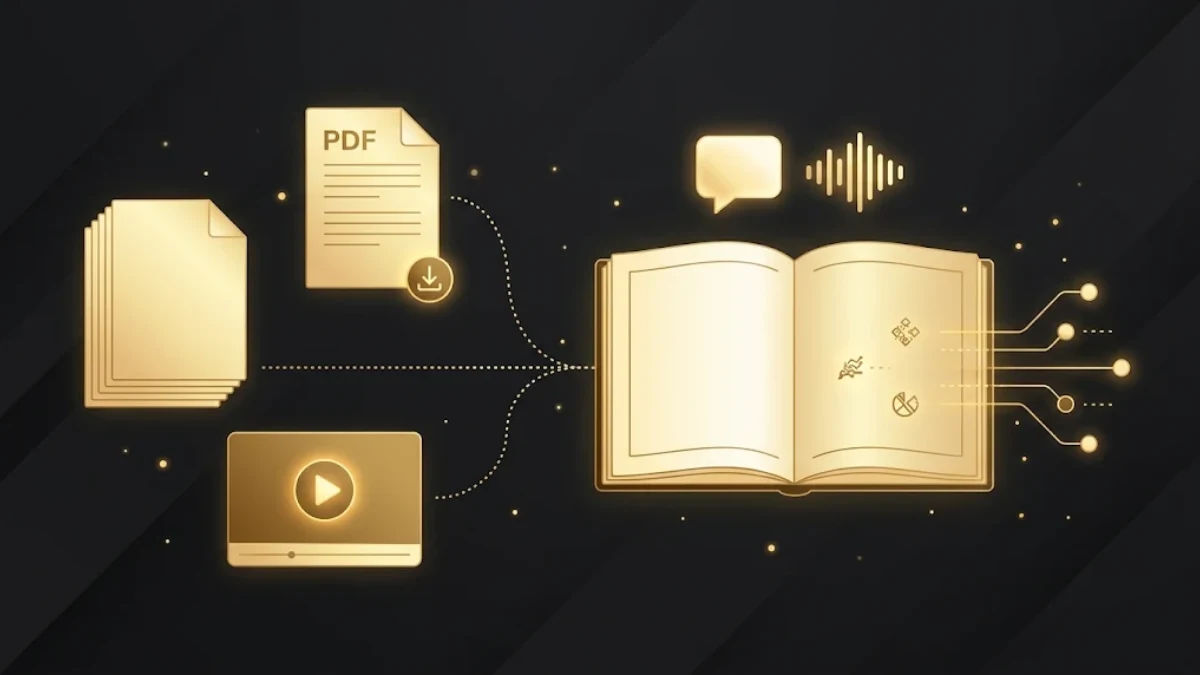
Gemini Notebook is Google’s AI research assistant that answers questions using only the sources you give it, such as PDFs, websites, YouTube videos and Google Docs. To use it, open Gemini Notebook, create a notebook, add your sources, and then ask questions in the chat. In addition, you can turn your sources into Audio Overviews, mind maps, reports, flashcards, quizzes and slide decks.
Google previously called this tool NotebookLM, and its old help centre now redirects to Gemini Notebook Help. This guide explains how to use the tool step by step, based on Google’s help pages and the live app as checked on 9 November 2026.
What is Gemini Notebook?
Gemini Notebook is an AI powered research assistant that helps you organise and understand information. Unlike a general chatbot, it grounds its answers in your own sources and shows in line citations, so you can check where each answer comes from.
According to Google, the tool supports more than 80 languages. It is available in the browser to users above the age of consent in supported countries and territories.
What sources can you add to Gemini Notebook?
Google lists these source types:
- PDF, Microsoft Word, text, Markdown, CSV and PowerPoint files
- Google Docs, Google Slides (up to 100 slides) and Google Sheets
- Web addresses and YouTube addresses of public videos
- Audio files, such as MP3 and WAV
- Images, including JPG, PNG and WEBP
- Copied and pasted text, and ePub files
In addition, each source can contain up to 500,000 words, or up to 200MB for uploaded files. Free users can add up to 50 sources to a notebook.
How to use Gemini Notebook step by step
Step 1: Create a notebook
First, open the tool in your browser and sign in with your Google account. Then create a new notebook. You will see three areas: Sources on the left, the chat in the middle and Studio on the right.
Step 2: Add your sources
Next, select Sources and add your files, links or text. You can also search the web for new sources from the same panel. Choose sources you have the right to use, and keep each notebook focused on one topic.
Step 3: Ask questions in the chat
Now ask questions in the chat box. For better answers, be specific. For example, instead of “Summarise this source”, ask “What are the three main findings in the customer survey report?”
The tool answers with citations. Then click a citation to see the exact passage it used. In addition, you can select specific sources in the Sources panel when you want answers from those sources only.
Step 4: Create an Audio Overview
Then open the Studio panel and select Audio Overview. Google describes it as a discussion between AI hosts that summarises the key topics in your sources. You can choose a format:
- Deep Dive, an in depth conversation between two hosts.
- The Brief, a single speaker summary in under two minutes.
- The Critique, constructive feedback on material such as an essay.
- The Debate, a formal debate between two hosts.
Besides that, you can also choose a language, choose a length and add a prompt to focus on specific topics. Google notes that Audio Overviews are AI generated and may contain inaccuracies.
Step 5: Turn sources into other formats
Finally, explore the other Studio options. In the live app, these include Video Overview, Slide Deck, Mind Map, Reports, Flashcards, Quiz, Infographic and Data Table.
How marketers and business owners can use Gemini Notebook
- Research a market. Add industry reports and competitor websites, then ask for the main trends.
- Plan content. Add your best performing blog posts and ask which questions they leave unanswered. Then compare those ideas with Google Trends.
- Prepare for meetings. Add a client brief and past reports, then ask for a one page summary.
- Train your team. Turn a long policy document into flashcards or a quiz.
- Repurpose content. Turn a webinar transcript into a report or a slide deck.
Tips for accurate answers
- Use trusted sources. The tool answers from your sources, so their quality matters.
- Check the citations. Always open the cited passage before you publish a fact.
- Keep notebooks focused. One topic per notebook gives clearer answers.
- Remember the limits. AI output can contain mistakes, so review everything before you use it.
Frequently asked questions
Is NotebookLM now Gemini Notebook?
Yes. Google’s NotebookLM help centre now redirects to Gemini Notebook Help, and the app now carries the Gemini Notebook name.
Is Gemini Notebook free?
Google offers the tool to free users, with usage limits such as up to 50 sources per notebook.
Can Gemini Notebook read YouTube videos?
Yes. You can add YouTube addresses of public videos as sources.
Does Gemini Notebook use the internet to answer?
It answers from the sources in your notebook. However, you can search the web for new sources and add them.
Start researching smarter
The tool turns a pile of documents into answers you can check, summaries you can listen to and study material you can share. Create one notebook for your next project, add five good sources and start asking questions.
For full details, see Google’s Gemini Notebook Help Center. For more practical tool guides, read our Google Alerts guide.



Comments