
Canva Brand Kit: How to Set Up Your Logos, Colours and Fonts
A Canva Brand Kit stores your official logos, colours, fonts and other brand assets in one place inside Canva. To create one, open Brand from the homepage side panel, choose Create new Brand Kit from the dropdown, name it, and then upload your logos, add your colour palettes and upload your fonts. After that, everyone on your team can use the same brand assets in every design.
This guide explains what a Brand Kit includes, who can create one and how to set yours up, based on the Canva Help Center as checked on 9 November 2026.
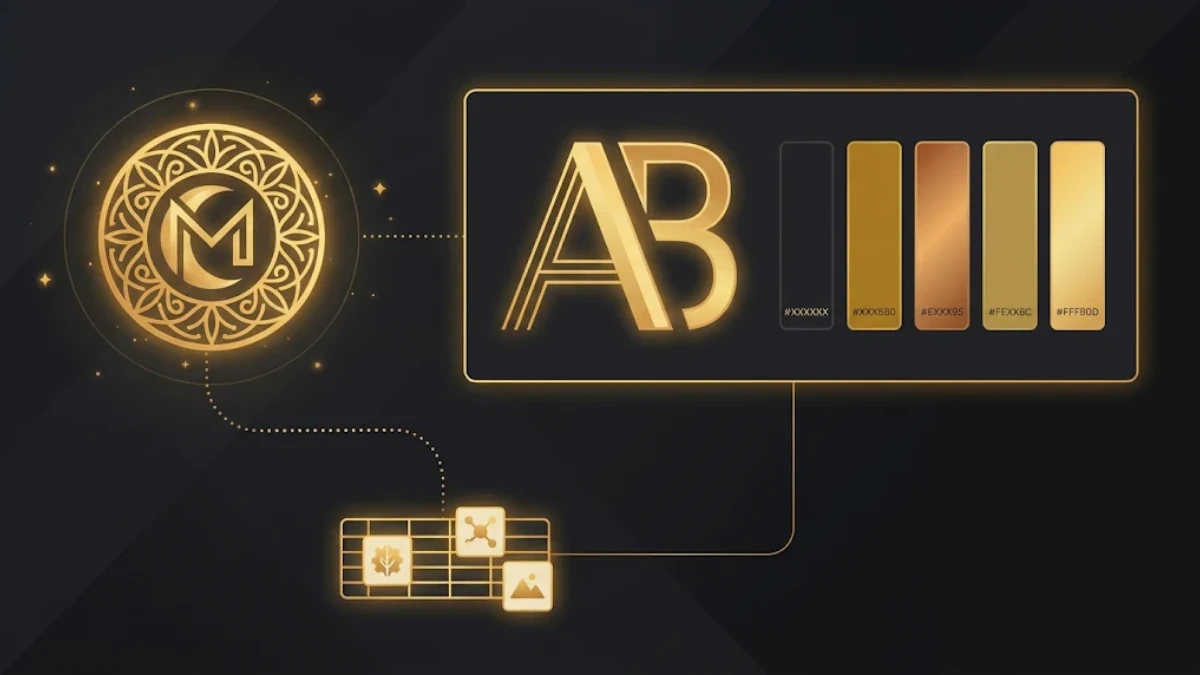
What is a Canva Brand Kit?
A Brand Kit is a shared library of your brand assets and guidelines. Instead of hunting for the right logo file or colour code, your team picks them straight from the Brand Kit while designing.
According to Canva, each Brand Kit can include:
- Brand logos
- Brand colours and colour themes
- Brand fonts
- Custom brand assets
- Brand templates
Why your business needs a Canva Brand Kit
Consistent branding makes your business easier to recognise. For example, when every post uses the same colours and fonts, followers know it is you before they read your name.
In addition, a Brand Kit helps you:
- Save time, because nobody searches for files or colour codes.
- Avoid mistakes, such as old logos or the wrong shade of a colour.
- Onboard people faster, because new team members find everything in one place.
- Control your brand. Admins can set up Brand Controls to limit team members to the colours and fonts in the Brand Kit.
Types of Canva Brand Kits
Canva offers two types:
| Type | Who creates it | Who can see it |
|---|---|---|
| Team and organisation Brand Kit | Admins and brand designers | Shared with team members |
| Personal Brand Kit | Individual users, when an admin enables it | Private to the creator |
Canva also lists these limits: up to 1,000 Brand Kits per team, depending on your subscription, and up to 2,000 brand assets per asset category in a Brand Kit. Each person can create one personal Brand Kit.
Who can create a Canva Brand Kit?
According to Canva, people with the admin or brand designer role in Canva Pro, Canva Teams, Canva Business or Canva for Education can create multiple Brand Kits. In Canva Enterprise, organisation admins and organisation brand designers can create and edit Brand Kits for the whole organisation.
Personal Brand Kits work differently. First, an admin turns them on under Settings, then Permissions, then Brand.
How to set up a Canva Brand Kit step by step
Step 1: Gather your brand assets
Before you start, collect everything in one folder:
- Your logo in its main version and any alternatives, such as a white version for dark backgrounds.
- Your brand colour codes.
- Your brand font files, if you use fonts that are not already in Canva.
- Any icons, patterns or photos your brand uses often.
Step 2: Create a new Brand Kit
Next, follow these steps from the Canva homepage:
- In the homepage side panel, select Brand.
- Open the Brand Kit dropdown and select Create new Brand Kit.
- Enter a name for your Brand Kit.
- Select Create.
Alternatively, Canva can set up your Brand Kit automatically from your website or a PDF.
Step 3: Add your logos
Then upload each version of your logo. Name each version clearly, such as “Main logo” or “White logo”, so your team picks the right one.
Step 4: Add your colours
After that, add your brand colour palette. You can also create colour themes, which group colours that work well together in one design.
Step 5: Add your fonts
Now set your brand fonts, for example one font for headings and one for body text. If your fonts are not in Canva, upload the font files you have the right to use.
Step 6: Add custom brand assets and templates
Finally, add the extra assets your team uses often, such as icons and photos. In addition, save your best designs as Brand Templates, so your team starts every new design from an approved layout.
How to duplicate a Canva Brand Kit
If you manage several brands or campaigns, you can copy an existing kit. To do this, select the more icon on the Brand Kit thumbnail and choose Duplicate. Then change only what differs, such as the logo or colours.
Tips for a strong Canva Brand Kit
- Keep it simple. Two or three fonts and a small colour palette are easier to use well.
- Add guidance. Use clear names, so people know when to use each logo or colour.
- Review it often. Remove old logos and colours as soon as your brand changes.
- Use it with Bulk Create. Canva Bulk Create plus a Brand Kit gives you many on brand designs in minutes.
Frequently asked questions
Is the Canva Brand Kit free?
Canva lists Brand Kit creation for people with the admin or brand designer role on Canva Pro, Teams, Business, Education and Enterprise plans.
How many Brand Kits can I create?
Canva allows up to 1,000 Brand Kits per team, depending on your subscription.
Can I create a Brand Kit from my website?
Yes. Canva can set up a Brand Kit automatically from your website or a PDF.
What is a personal Brand Kit?
It is a private Brand Kit that only its creator can see. An admin must enable personal Brand Kits first.
Build your brand with confidence
A Brand Kit takes less than an hour to set up and saves time on every design you make after that. Gather your assets, create the kit, and then make it the starting point for your whole team.
For more detail, read Canva’s guide to setting up Brand Kits. If you need help building a brand that sells, see our digital marketing services.



Comments